Configuration centre

Configure your place step by step.

This guide explains the most important parts of Gate Auto Open in plain language. Start with the first setup, then return only to the section you want to adjust.

Configure your place step by step.
01

1. First phone settings

First choose the app language, then open Phone readiness and check the permissions and system settings needed by your configuration.

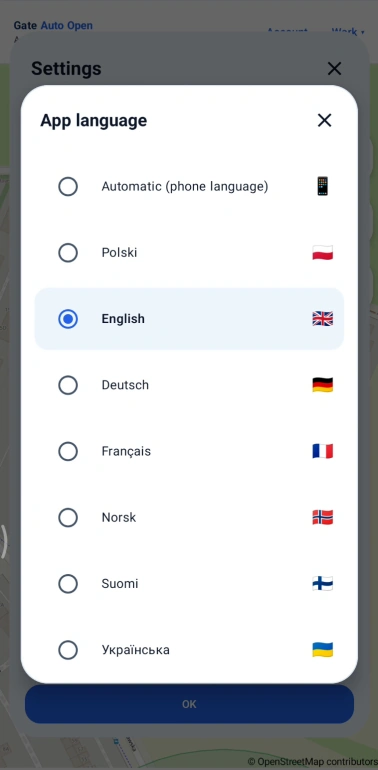
App language

You can keep Automatic to follow the phone language or choose a language manually. The setting changes the app interface and audio announcements.

Automatic (phone language)

The app selects the interface language from the phone language when that language is supported.

Manual language selection

Choose any language available in the app. The screenshots in this guide stay in English so one current image set can be maintained for every website language.

iScreenshots intentionally remain in English. The screen layout and features are the same in every app language.

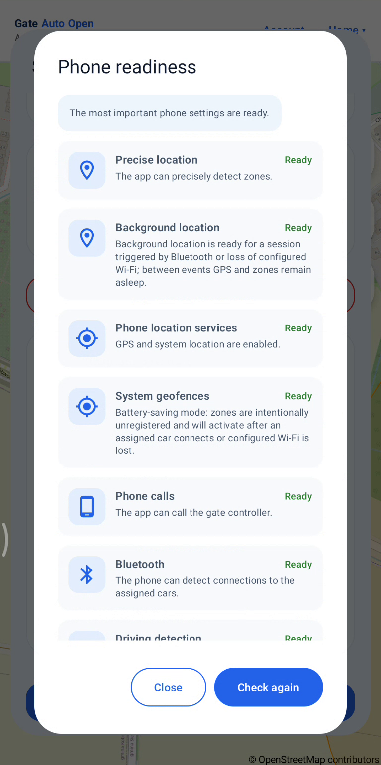
Phone readiness and required permissions

Open Phone readiness and make sure the items needed by your setup are ready. This helps Android allow the automation to work reliably in the background.

Precise location

Enable precise location so the app can reliably recognise small zones near the gate.

Background location

Allow background location so geofences and scenarios started by Bluetooth or home Wi‑Fi can work while the app is not on screen.

Phone location services

Keep Android location services / GPS enabled. Without them the app cannot receive the position data needed for zones.

System geofences

Ready means Android can use the geofences required by the app. In energy-saving mode some zones may intentionally stay inactive until a car Bluetooth connection or configured Wi‑Fi event wakes the automation.

Phone calls

Required only when the gate is opened by a GSM phone call. It is not needed for SUPLA or HTTP/HTTPS opening itself.

Bluetooth

Allow Bluetooth / nearby devices so the app can recognise a connection to an assigned car.

Driving detection

Useful when Open only while driving is enabled. It helps confirm that the phone is actually travelling in a vehicle.

iAfter changing Android settings, return to the app and use Check again. Some permissions are optional depending on the selected opening method.
iAfter Phone readiness is complete, add your first place.
02

2. Add a place

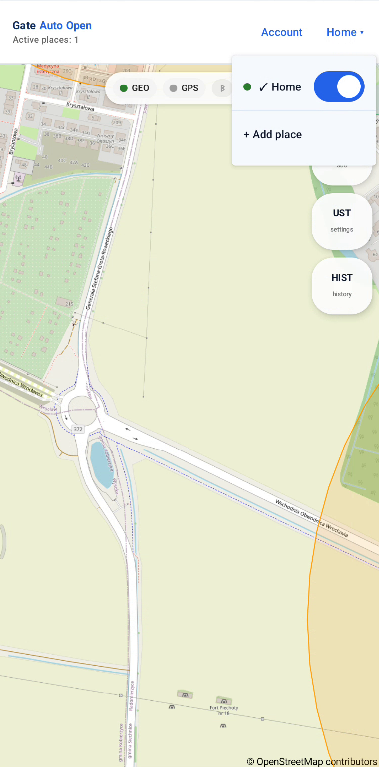
Each place has its own gate, Home/base, cars, Wi‑Fi and zones. Use + Add place from the place selector to create another location.

Home → + Add place

Open the current place menu in the top-right corner and choose + Add place. The same menu is later used to switch between saved places.

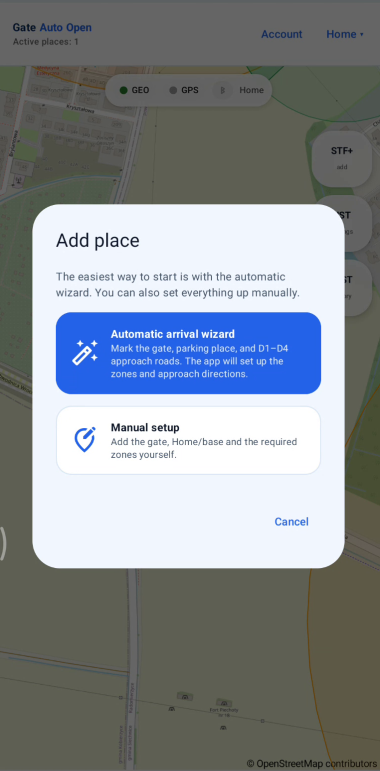
Automatic arrival wizard

Recommended for a first setup. The wizard asks for the gate, parking place / Home and up to six real approach points, then proposes zones and directions that you can adjust.

Manual setup

Choose this if you want to place Gate, Home/base and every required zone yourself without an automatic proposal.

iFor a first configuration, the automatic wizard is usually the easiest option. Create separate places for gates in different locations.
03

3. Automatic wizard step by step

The automatic wizard creates the first place from a few map points. Review the proposal before saving it and adjust anything that does not match the real road.

1/6

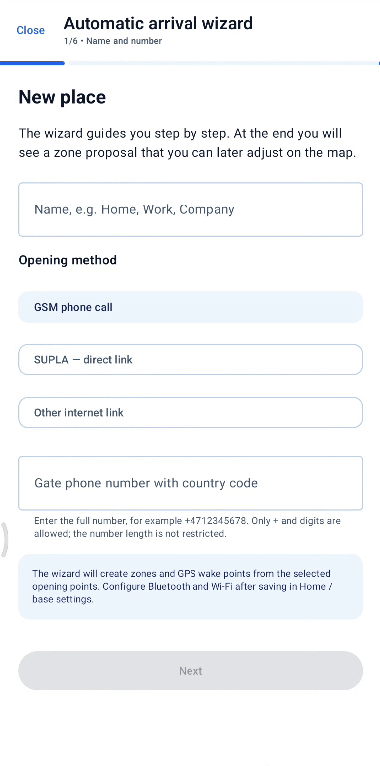
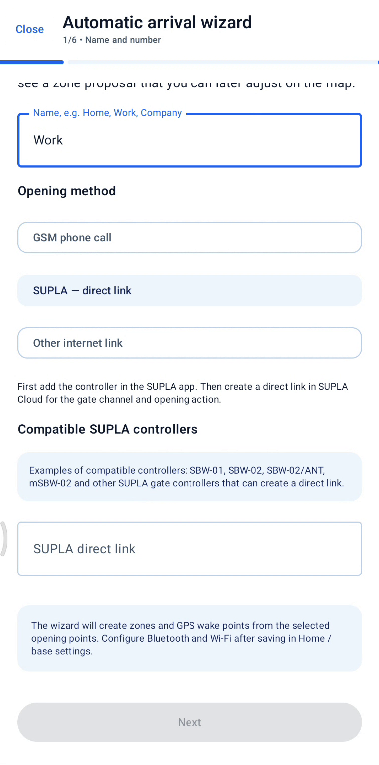
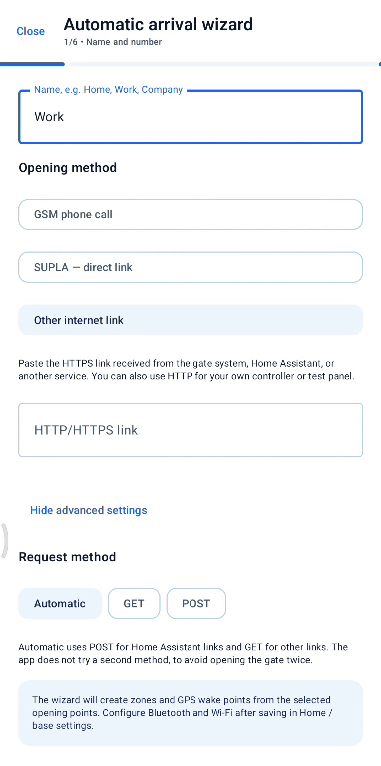
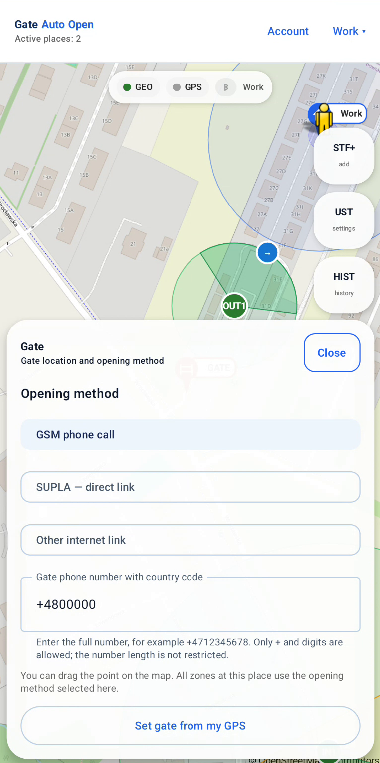
Place name and opening method

Give the place a clear name, such as Home, Work or Company, and choose how the gate controller receives the opening command.

  • GSM phone call — enter the full gate phone number including the country code.
  • SUPLA — direct link — paste the direct link generated in SUPLA Cloud for the gate channel.
  • Other internet link — use your own HTTP/HTTPS address, for example from Home Assistant or another system. Automatic, GET and POST are available in advanced settings.
Screenshot: GSM phone call
Screenshot: SUPLA — direct link
Screenshot: Other internet link
2/6

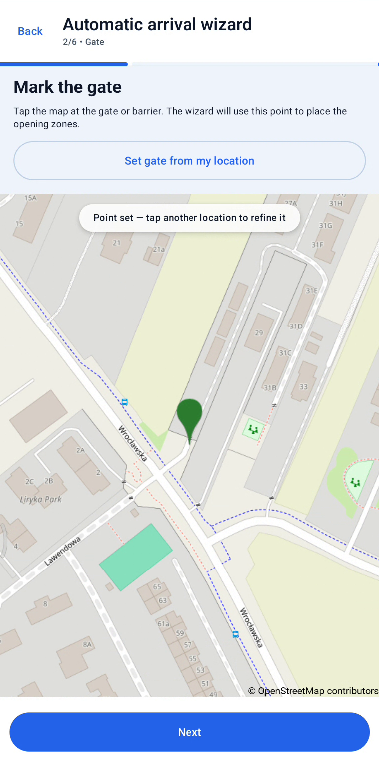
Mark the gate

Tap the map exactly where the vehicle passes through the gate or barrier. If you are standing there, you can use Set gate from my location.

  • Place the point on the real passage through the gate, not in the middle of the property.
Screenshot: Mark the gate
3/6

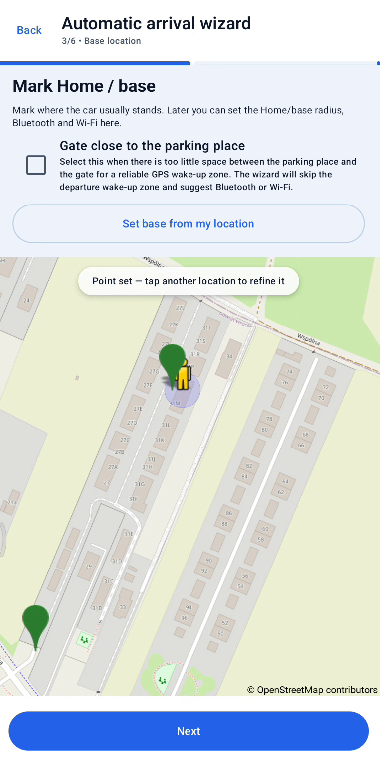
Mark Home / base

Mark where the car is normally parked. This point is used by departure automation, Bluetooth and home Wi‑Fi.

  • Set Home/base on the driveway, parking space or garage area where the vehicle actually starts its trip.
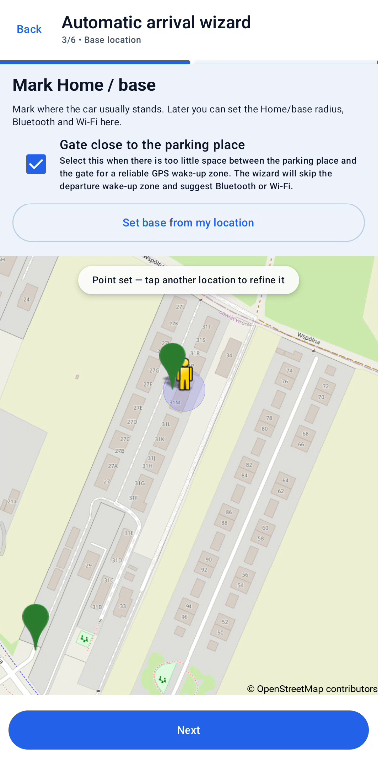
  • Use Gate close to the parking place only when there is too little room between the parking place and gate for a reliable departure zone.
Screenshot: Mark Home / base
Screenshot: Gate close to the parking place
4/6

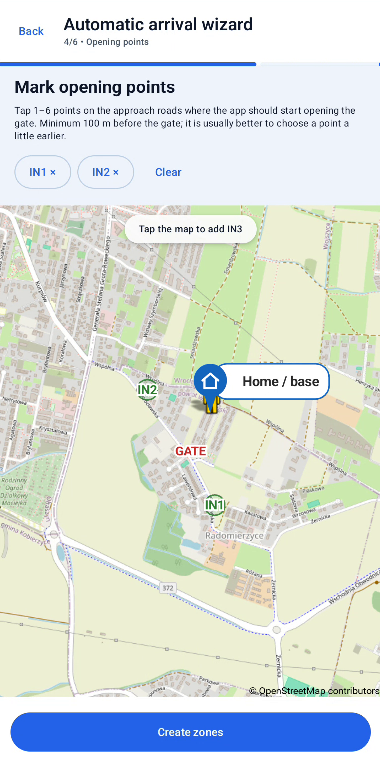
Mark the real approach roads

Add opening points on the roads you actually use when approaching the gate. The wizard can handle several approach directions.

  • Add between one and six points on the real roads used to reach the gate.
  • Place points before the gate, where there is enough time for the opening command to be sent before you arrive.
Screenshot: Mark the real approach roads
5/6

Create the proposed zones

The wizard analyses your points and prepares a proposal for GPS wake-up and opening zones.

  • After Create zones, continue to Review proposal and check the result on the map.
6/6

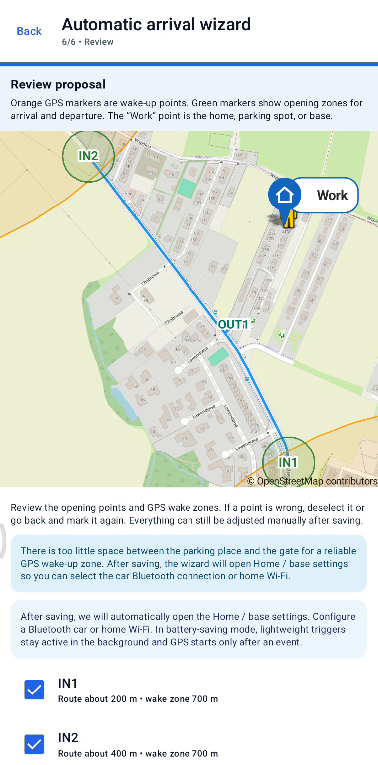
Review the proposal

Check the proposed gate, Home/base, wake-up zones, opening zones and directions before saving.

  • If something is not on the real road, go back or adjust it manually after saving.
  • The automatic proposal is a starting point; a normal test drive is still important.
Screenshot: Review the proposal
iAfter the wizard, continue with the sections below to check gate, Home/base, arrival and departure settings.
04

4. Gate and opening method

The Gate point stores both the physical gate location and the method used to send an opening command.

GSM phone call

Use this when the controller opens after receiving a call from an authorised phone number. Enter the full number including country code.

SUPLA — direct link

Paste a direct SUPLA Cloud link for the gate channel. Keep the full link private.

Other internet link — HTTP/HTTPS

Use a compatible HTTP/HTTPS address from your own controller or automation system. HTTPS is recommended whenever possible.

Audio opening notification

After the opening command is sent, the app can play an audio confirmation in the selected app language so you do not need to look at the phone.

iCheck this setting first if the app reaches the opening zone but does not call or trigger the gate. A common mistake is selecting an internet link instead of GSM.
05

5. Home / base

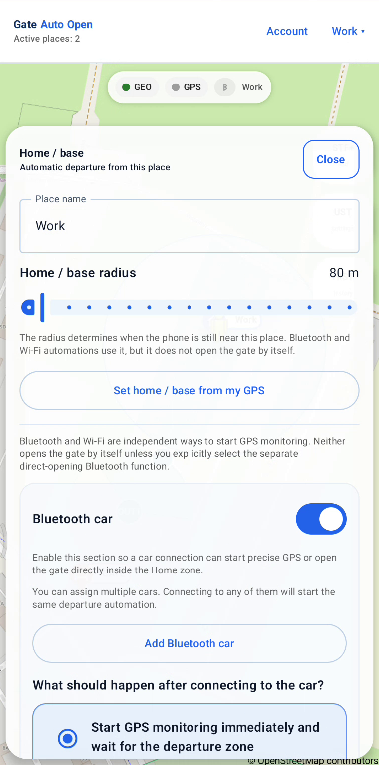
Set Home/base where the car is normally parked. Then assign the car Bluetooth and, if needed, the home Wi‑Fi used for departure.

Set Home / base

Home/base is the parking reference point used by departure logic. Put it where the car actually starts its trip.

Parking point

Place the point on the driveway, garage or parking position rather than at the gate itself.

iBeing inside Home/base by itself never opens the gate.

Configure car Bluetooth

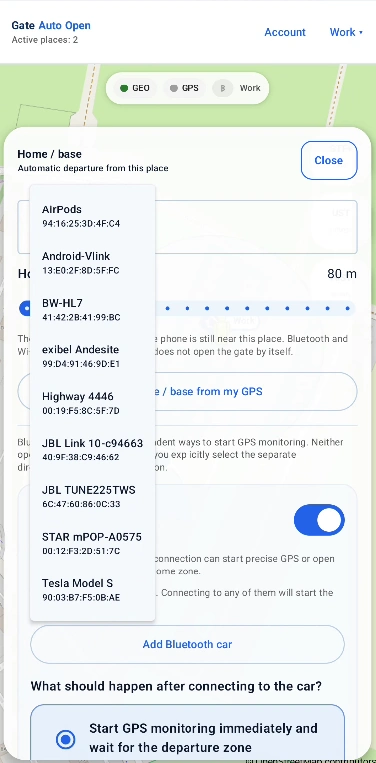
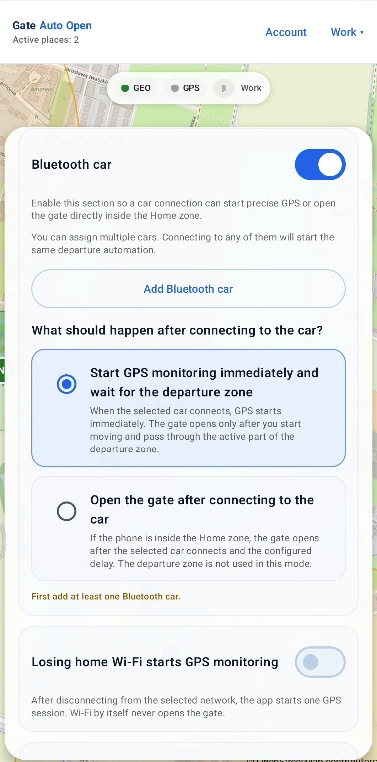
Assign the car Bluetooth devices that may start a departure scenario. The opening behaviour itself is selected in the Departure section.

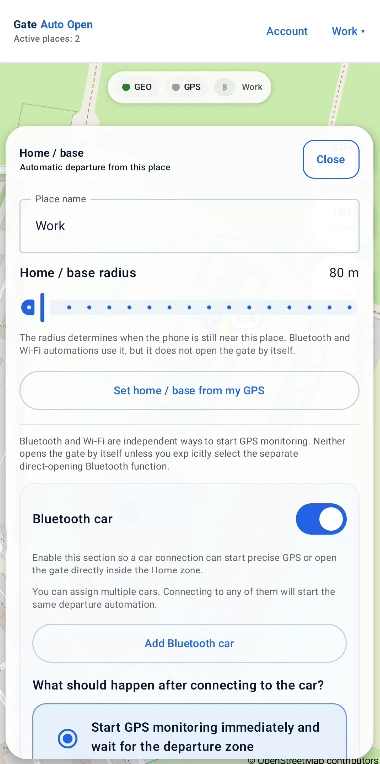
Bluetooth car

Enable car Bluetooth for this place and select the vehicle radio, hands-free system or another Bluetooth device that connects when you enter the car.

Several cars

You can assign more than one car. A connection to any assigned device can start the same selected departure logic.

iThe Bluetooth connection is a start signal. It does not always mean the gate should open immediately.

Configure home Wi‑Fi

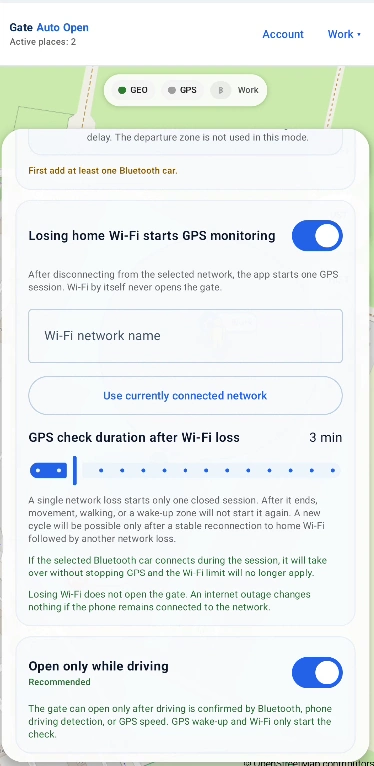
Home Wi‑Fi can be used as an alternative wake signal for departure when car Bluetooth is not used.

Home Wi‑Fi

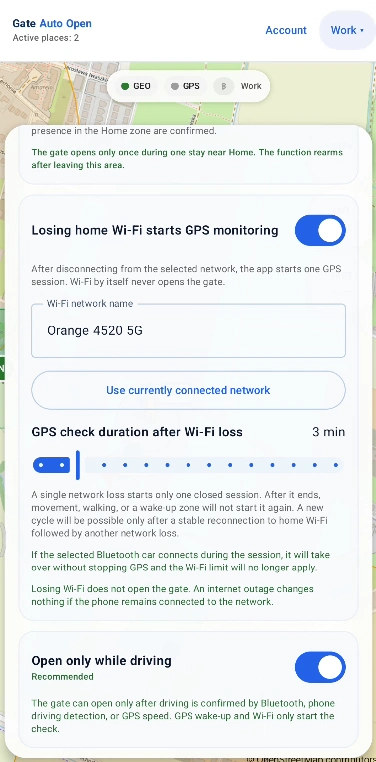
Choose the home Wi‑Fi network that should be observed. Losing this Wi‑Fi starts one location observation session; it does not open the gate by itself.

GPS check duration

Set how long the GPS check should continue after losing the selected Wi‑Fi so the phone has time to reach the green departure zone.

iAn Internet outage is not the same as losing Wi‑Fi. If the phone is still connected to the router, the Wi‑Fi departure trigger has not occurred.
iBluetooth and Wi‑Fi are wake signals for departure. They are configured per place.
06

6. Configure arrival

A typical arrival uses two elements: an orange GPS wake-up zone and a green opening zone set to Arrival. The wake-up prepares location; the green zone can trigger the opening.

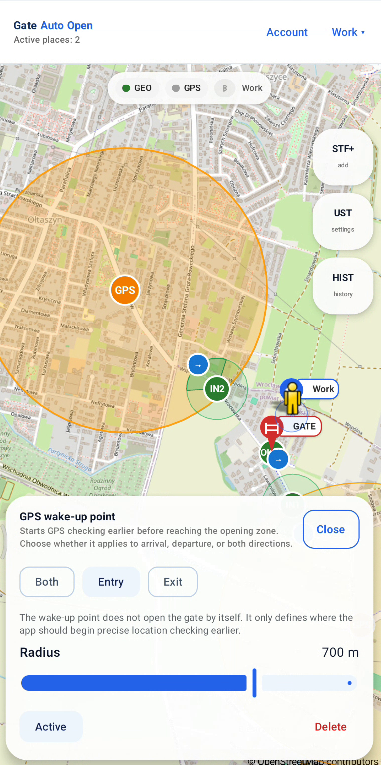
GPS wake-up zone

Place it earlier on the approach road. Entering it starts a more accurate location check before the opening zone. The wake-up zone never opens the gate by itself.

Wake-up direction

Choose Both, Entry or Exit depending on how the road crosses the wake-up zone.

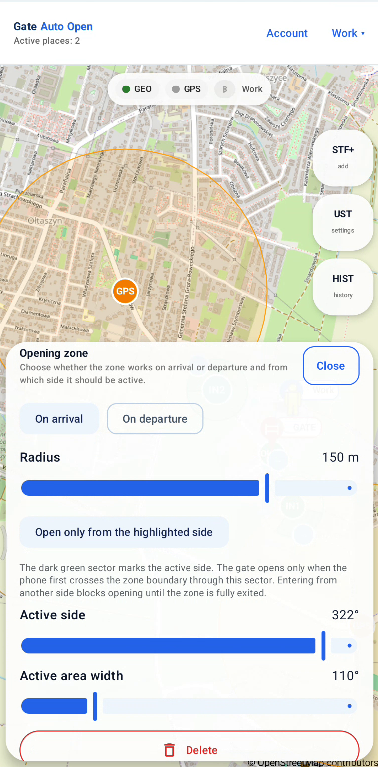
Green opening zone — Arrival

Place it on the real approach road early enough for the gate to open before you arrive.

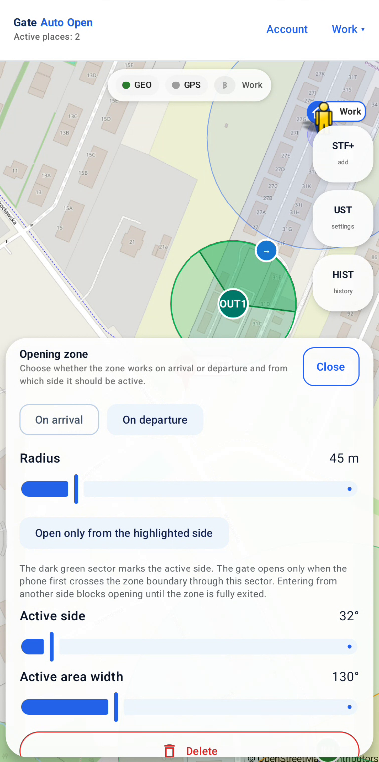
Open only from the highlighted side

When enabled, the phone must enter through the highlighted sector. Use Active side and Active area width to match the real approach direction.

iCreate separate wake-up and opening zones for different approach roads when needed.
How it works

Example: returning home by car

The example uses one GPS wake-up, one green Arrival zone and a connected assigned car Bluetooth. Bluetooth confirms that you are driving but does not open the gate by itself.

1
GEO active • GPS standby • Bluetooth connected

You are still away from home

Precise GPS does not need to run continuously. Geofencing waits for the configured wake-up area.

2
GPS LIGHT

You enter the GPS wake-up zone

The automation starts active GPS checking. The gate still does not open.

3
GPS LIGHT

You drive toward the gate

The app receives fresh positions and waits for the correct green opening zone and, when configured, the correct direction.

4
Arrival zone • opening

You enter the green Arrival zone

The app sends the configured opening command and can play the audio confirmation.

5
Scenario completed

You pass the gate and reach Home/base

The active scenario ends and the app can return to its battery-saving state.

iBlue GPS standby means a low-power ready state. Orange GPS LIGHT means active position checking after the automation has been woken.
07

7. Configure departure

Departure is configured separately from arrival. Choose one of three variants according to the distance between parking and gate and the signals available in the car.

Green opening zone — Departure

Used by the Bluetooth + green zone and Wi‑Fi + green zone variants. Entering the active part of this zone can send the opening command.

Open only from the highlighted side

Restrict the departure to the highlighted side when the same road can be crossed in both directions.

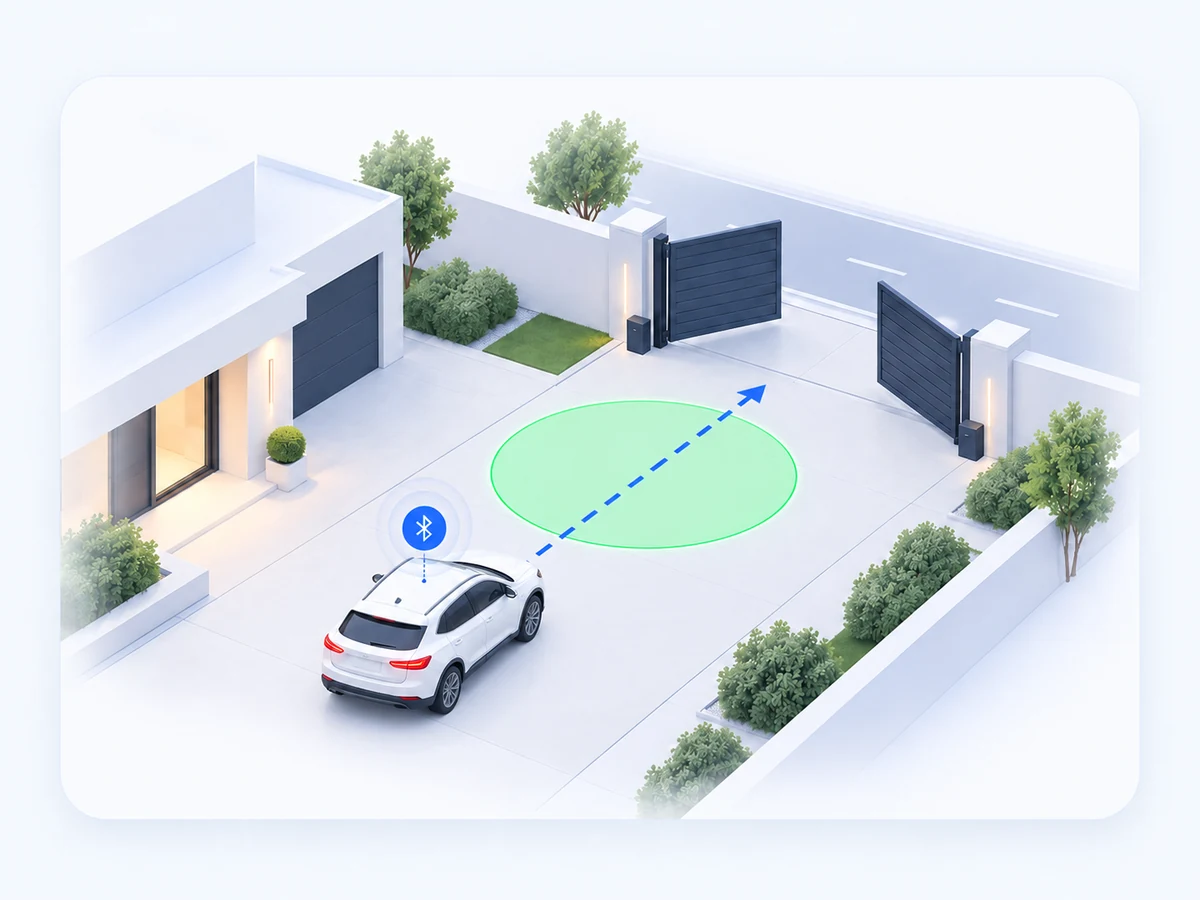
1Bluetooth + green zone

Best when there is enough distance between the parking place and gate for a reliable green departure zone.

  1. The scenario starts when the phone is inside Home/base and connects to an assigned car Bluetooth.
  2. The app starts active GPS checking and stays ready for the configured wake-up time.
  3. Only entering the green Departure zone sends the opening command.
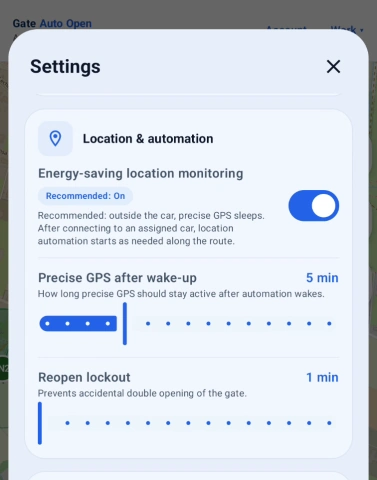
Energy-saving location monitoring — On

Recommended for everyday use. Outside an active trip, precise GPS can sleep. Connecting to an assigned car wakes location automation when needed.

Precise GPS after wake-up — 5 min

This is how long active GPS checking remains available after the automation wakes. It is not an opening delay. If you reach the green zone earlier, opening happens earlier.

Reopen lockout — 1 min

Prevents an accidental second opening command shortly after the first one. It applies to automatic opening in general, not only Bluetooth.

Screenshot: Bluetooth + green zone
Screenshot: Bluetooth + green zone settings
Screenshot: Location & automation
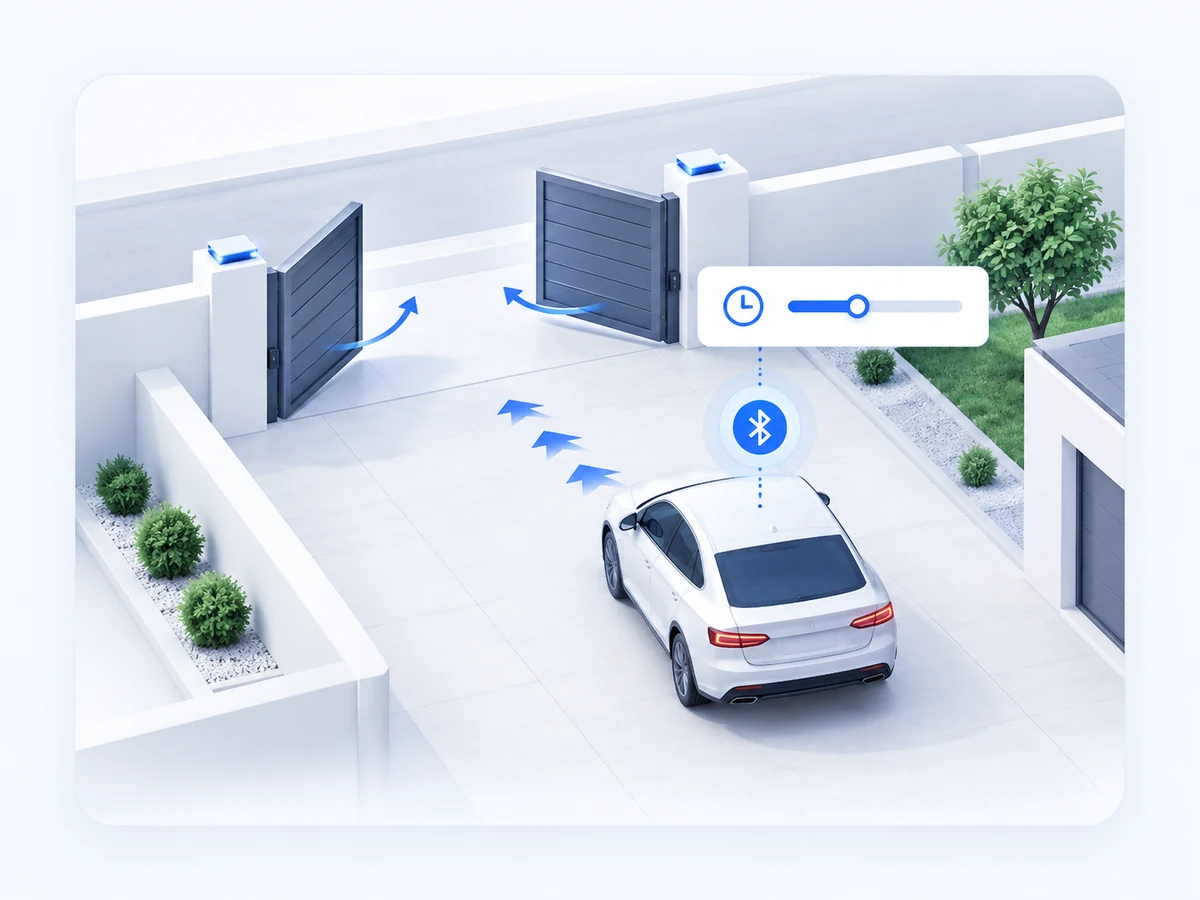
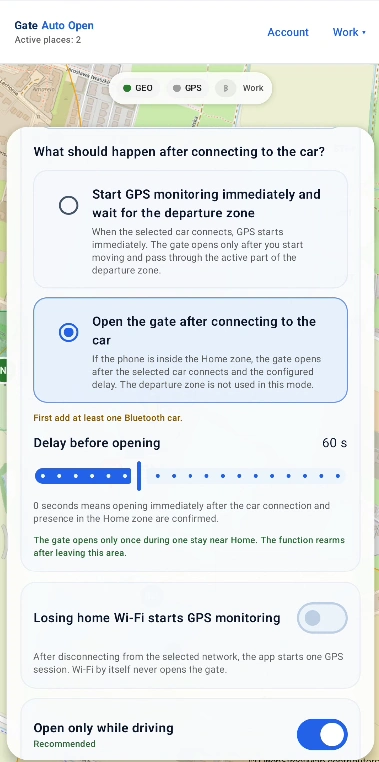
2Bluetooth + delay

Useful when the car is parked so close to the gate that there is no reliable space for a green departure zone.

  1. The phone must be inside Home/base when the assigned car Bluetooth connects.
  2. The app counts the configured delay.
  3. After the delay, the app sends the opening command without requiring a green departure zone.
Screenshot: Bluetooth + delay
Screenshot: Bluetooth + delay settings
3Wi‑Fi + green zone

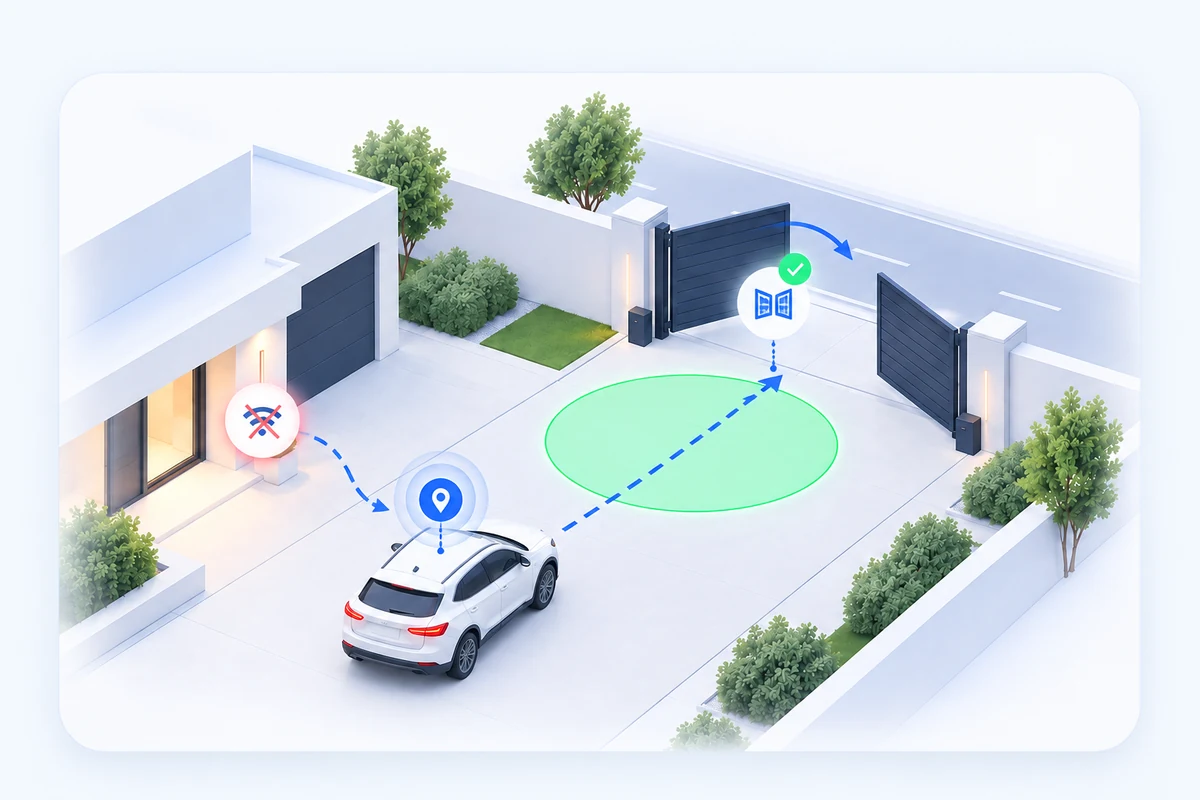
Alternative when car Bluetooth is not used. Losing the selected home Wi‑Fi wakes one GPS observation session.

  1. The selected home Wi‑Fi is lost and the app starts GPS observation.
  2. Losing Wi‑Fi alone does not open the gate.
  3. Entering the green Departure zone confirms the exit and sends the opening command.
Screenshot: Wi‑Fi + green zone
Screenshot: Wi‑Fi + green zone settings
iChoose only the departure logic that matches your real parking and driveway. Test it under normal driving conditions.
How it works

Example: leaving for a shop — Bluetooth + green zone

The example assumes the car is parked inside Home/base and has an assigned Bluetooth device.

1
GEO active • GPS inactive

The car is parked

Bluetooth is not connected yet, so precise GPS can stay inactive while the phone waits for a departure signal.

2
Bluetooth • GPS LIGHT

The car Bluetooth connects

The app recognises the start of a departure and activates location checking.

3
GPS LIGHT

You drive toward the gate

The app observes the position and waits for the green Departure zone. If Open only while driving is enabled, the driving condition is also checked.

4
Departure zone • opening

You enter the green Departure zone

The opening command is sent. The earlier Bluetooth connection alone did not open the gate.

5
Scenario completed

You leave the property

The scenario finishes. Bluetooth may remain connected, but the completed departure does not keep reopening the gate.

iThe green-zone variant is more precise than opening from Bluetooth alone because the command is sent only at the selected point on the driveway.
08

8. Fine-tune zones

After the first test drive, adjust the zones to the real GPS behaviour and road geometry rather than trying to make every circle as small as possible.

Move the zone

Place the centre on the part of the road the car really passes through. A small correction can matter more than changing the radius.

Adjust the radius

Increase the radius if GPS often reaches the zone too late or misses it; reduce it when the zone reacts too early or catches a nearby road.

Active side / Active area width

Use the active side when only one direction should count. Match the highlighted sector to the real direction of travel.

Several approach roads

Use separate wake-up and opening zones for different roads instead of stretching one zone across several streets.

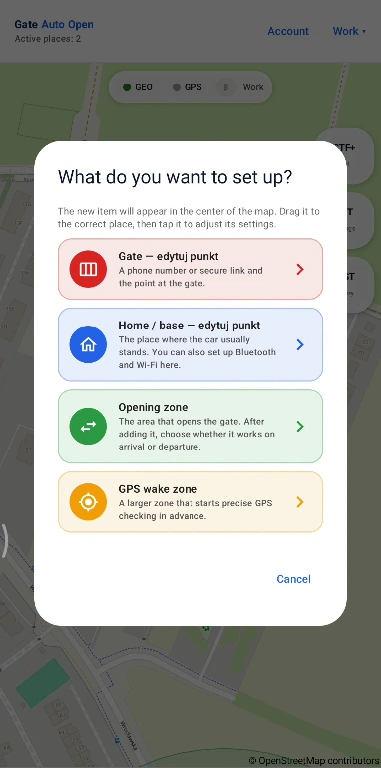
Add map elements manually

Manual setup lets you add or move the Gate, Home/base, opening zones and GPS wake-up zones directly on the map.

Available map elements

Gate, Home/base, opening zone and GPS wake-up zone can be added independently and then configured for the selected place.

iIf you cannot obtain reliable behaviour, you can send the map configuration to support from the app.
iMake one change at a time and repeat the same real route. This makes it easier to see what improved the result.
09

9. Test, history and support

Use History for everyday confirmation. For a problem that needs analysis, enable diagnostic logs before the test drive and send the support request from the app.

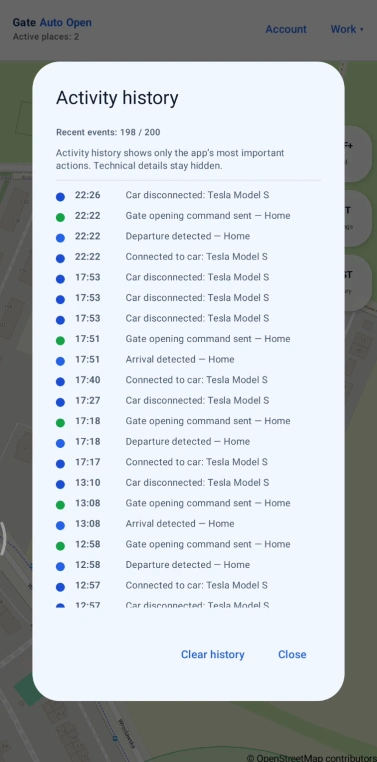
History

History shows recent automation events and helps confirm whether the app recognised a wake-up, opening or completed scenario.

Check the event sequence

Look at the order of events around the time the gate should have opened. This often shows whether the problem was a missing zone, missing Bluetooth signal or opening method.

iHistory is useful for the user; diagnostic logs contain more detail for support.

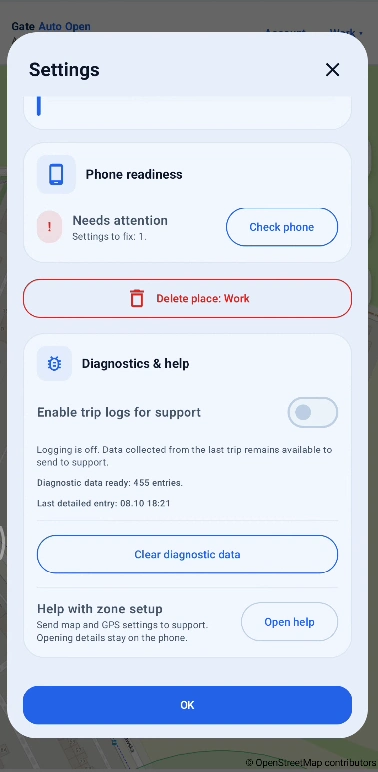
Diagnostics and trip logs

Enable diagnostics before reproducing a problem, drive the normal route, then send the request from the app. You can disable diagnostics after the test.

Attach recent trip logs

Logs are optional and are sent only when you choose to send a support request. They help support understand the sequence of GPS, Bluetooth, Wi‑Fi and zone events.

iDo not rely on email for diagnostic analysis — the app is the channel that can attach the available logs and configuration data.

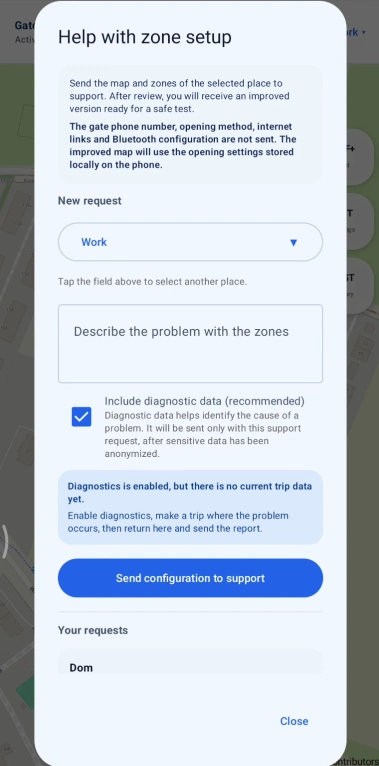
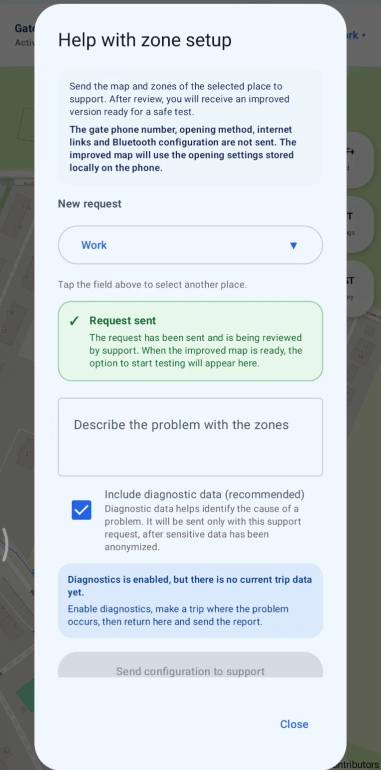
Support map workflow

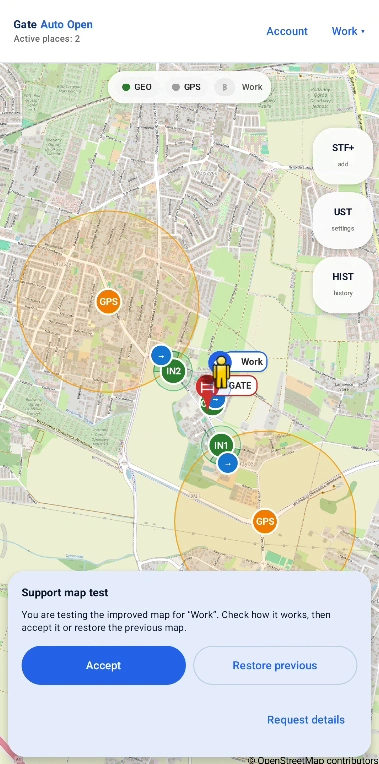
For zone or route problems, create a request in the app. Support can prepare an improved map proposal that you test before accepting.

1

Create a request in the app

Describe the problem and send the selected place configuration. If you enabled diagnostics, attach the available recent logs.

Create a request in the app
2

Support prepares a proposal

When a corrected map is ready, the app shows a message and lets you start a support map test.

Support prepares a proposal
3

Test before accepting

Drive the normal route with the proposed map. Accept it only if it works better; otherwise restore the previous configuration.

Test before accepting
iGate phone number, opening links and Bluetooth identifiers remain on the phone and are not sent as part of the map support request.
iFor configuration and drive-related problems, use the in-app support request. General questions can be sent by email.
10

10. Account, plan and privacy

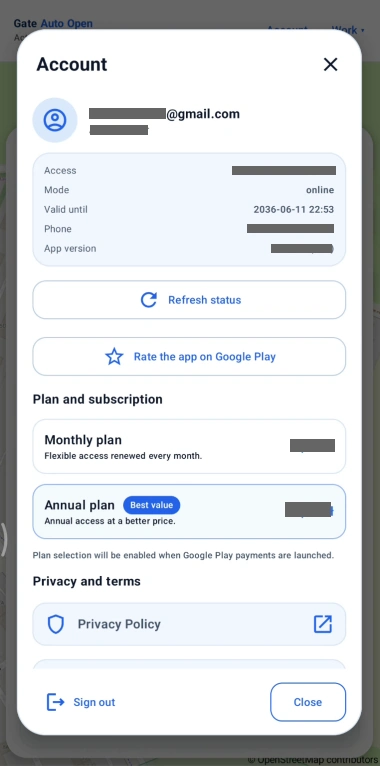
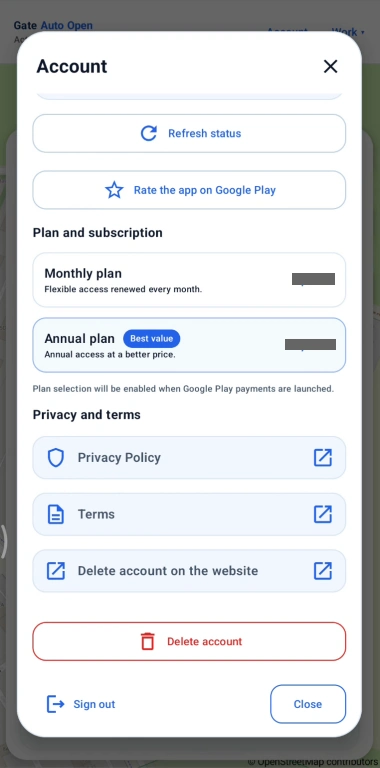
The Account screen shows access status, subscription options, legal documents and account actions.

Refresh status

Refresh the current access/subscription status if Google Play or the server status has just changed.

Monthly and annual plans

Available plans and prices are loaded from Google Play. The displayed currency and price may differ by country and market.

Privacy Policy / Terms

Open the current Privacy Policy and Terms of Service.

Delete account on the website

Opens the public website where the account can also be deleted when the app is not available.

Delete account

Permanently deletes the account after the required confirmation.

Sign out

Signs the current account out of the app without deleting it.

iSubscription price and currency come from Google Play so the app can show the local offer for the user’s market.
11

11. Status bar meanings

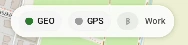
The status bar at the top of the map shows the current GEO, GPS and Bluetooth states. The colour changes according to what the app is doing.

GEO — green

Geofencing is active. Android can report entry into and exit from saved zones without continuously running precise GPS.

GPS — gray

GPS is inactive. The app is not currently performing active position checks required by a scenario.

GPS STANDBY — blue

The app is in a low-power ready state and waits for an event that requires more accurate location checking.

GPS LIGHT — orange

The app is actively checking location after the automation has been woken, for example by a GPS wake-up or the start of a departure scenario.

Bluetooth — gray

No assigned car is currently connected by Bluetooth.

Bluetooth — blue

The phone is connected to an assigned car Bluetooth and the app can use this as a signal for the configured scenario.

iYou do not switch these states manually. The app changes them automatically according to configuration, position and car connection.
12

12. Troubleshooting

If automation does not behave as expected, check the cases below first. Many apparent faults are caused by the selected opening method, zone placement or intentional safety lockouts.

The gate does not open and the app does not make a GSM call.
Open Gate settings and check the selected opening method. A common mistake is selecting Other internet link / HTTP instead of GSM phone call. Also check the full gate number and the Phone calls permission.
Bluetooth connected, but the gate did not open.
This can be correct. In Bluetooth + green zone, Bluetooth starts GPS observation but the gate opens only after entering the active green Departure zone. In Bluetooth + delay, opening happens only after the configured delay.
Losing home Wi‑Fi did not open the gate.
That is expected. Losing the configured Wi‑Fi only starts one GPS observation session. The green Departure zone must still be entered. An Internet outage while the phone remains connected to the router is not a Wi‑Fi loss.
I left through the gate, immediately turned back and it did not open again.
Check Reopen lockout. The default one-minute lockout prevents an accidental second command. A new zone event also requires a proper new entry into the active part of the zone.
The gate opens too late or sometimes not before I arrive.
Move the GPS wake-up earlier and make sure the green opening zone is not too close to the gate. Adjust the radius only after confirming the zone centre is on the real road.
The car passes near the zone, but the app does not count it.
Check zone radius, Active side and Active area width. With Open only from the highlighted side enabled, the phone must enter through the highlighted sector.
GPS observation ends before I reach the departure zone.
Check Settings → Location & automation → Precise GPS after wake-up. The default is 5 minutes. Add a small safety margin; for example, if the normal drive to the zone takes about 5 minutes, set about 8 minutes.
The GPS wake-up was detected, but the gate did not open.
Correct behaviour: a GPS wake-up only starts more accurate location checking. In zone-based scenarios, the gate opens only after the correct green opening zone is entered. Bluetooth + delay is independent of the green departure zone.
The app works while open but not reliably in the background.
Open Phone readiness and check Precise location, Background location, Phone location services, System geofences, Bluetooth and Android battery restrictions. If you use GSM, also check Phone calls.
Why can Gate Auto Open use more battery?
Precise GPS always uses more power. Keep Energy-saving location monitoring enabled for normal use: with a typical Bluetooth setup, active GPS checking starts mainly after the phone connects to an assigned car and around the configured zones. If the GPS wake-up radius is large, for example about 2.5 km, increased use may begin around that distance from home. Android battery optimisation for Gate Auto Open should still be disabled / set to Unrestricted so the system does not put the app to sleep — this is a different setting. Turning Energy-saving location monitoring off inside the app allows automation without waiting for Bluetooth or Wi‑Fi, but battery use can be noticeably higher. Charging the phone during longer drives is recommended.
I do not know why one specific trip failed.
Enable trip logs before the next attempt, reproduce the issue on the normal route and send a support request from the app with the available recent logs. Email cannot attach these diagnostic logs.
iIf the problem continues, change one setting at a time, repeat the same route and send an in-app support request with logs when diagnostic analysis is needed.

Cannot get the zones right?

Send the selected place configuration to support from the app. We can prepare a map proposal for you to test before deciding whether to keep it.

Open support